Templates
Launch ready-made apps from the catalog without wiring everything by hand.
Templates are the fastest way onto Belune. Each one is a curated recipe — the image or repo, sensible defaults, the databases it needs, and the environment variables it expects — so launching a known app is a few clicks instead of a manual setup.
1. Browse the Catalog
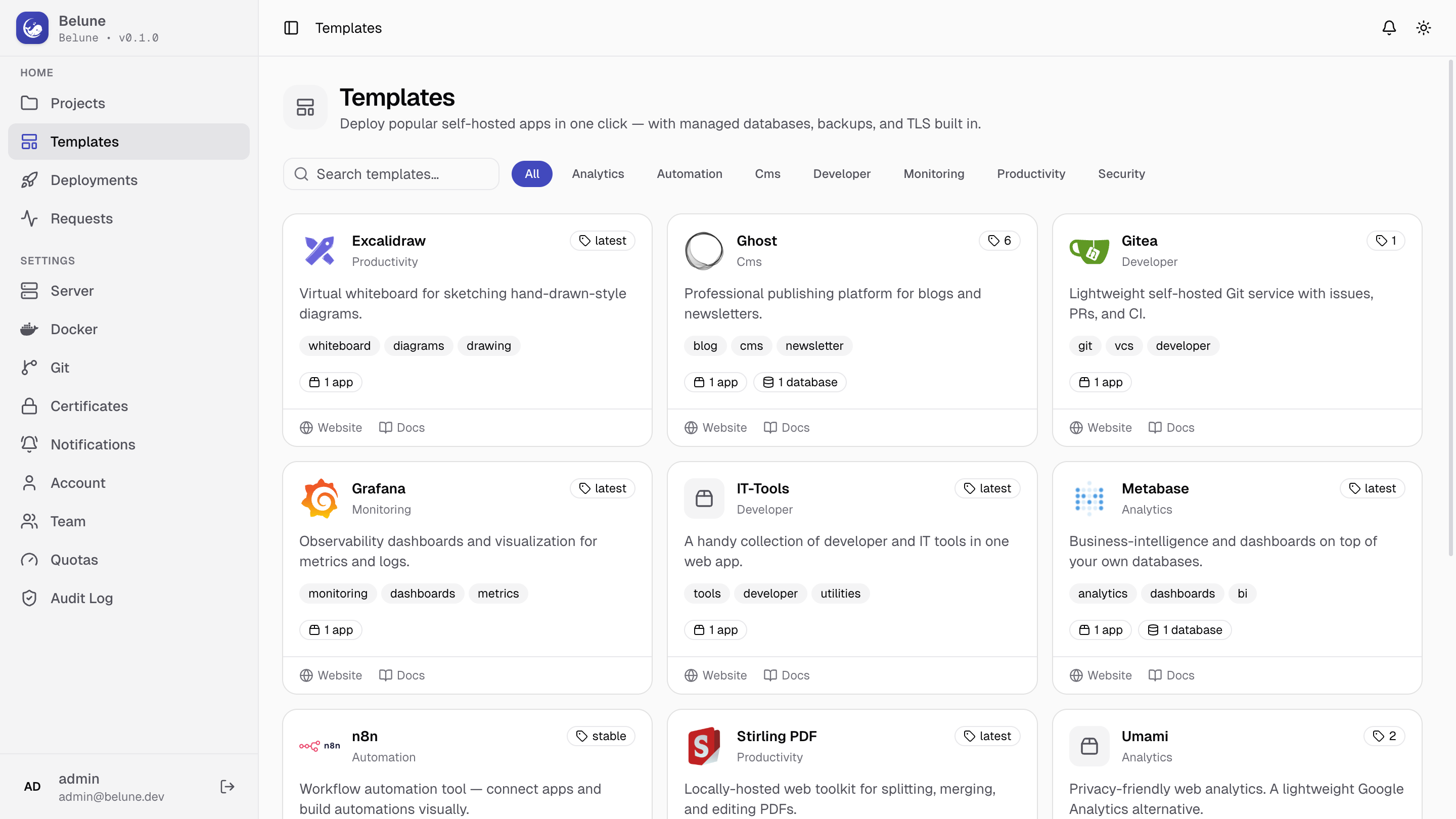
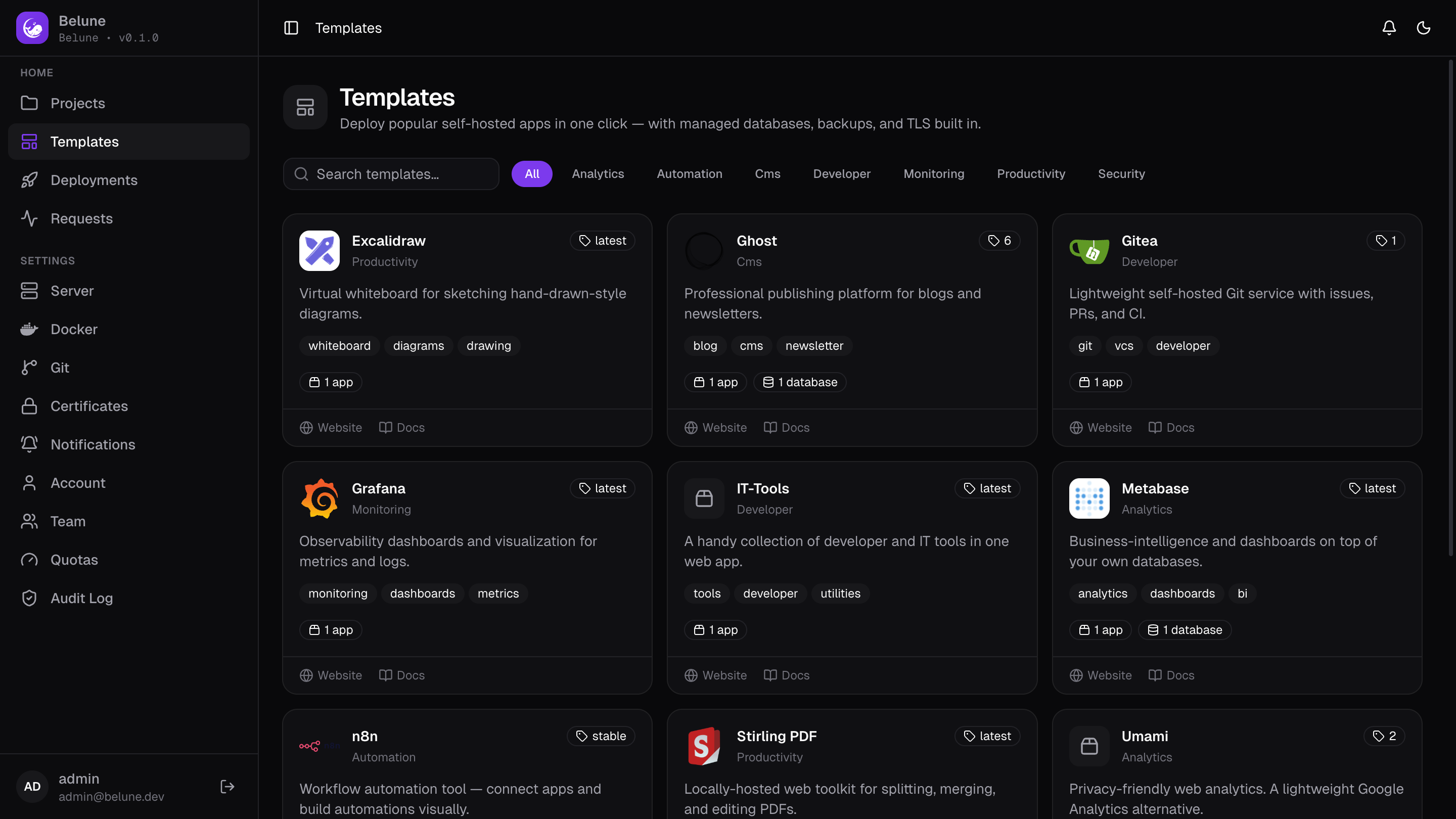
Navigate to Templates from the sidebar and it opens the catalog directly. Each card shows what the template deploys and which services it pulls in (a database, a cache, a volume). Pick one to open its deploy dialog.
2. Fill in the Wizard
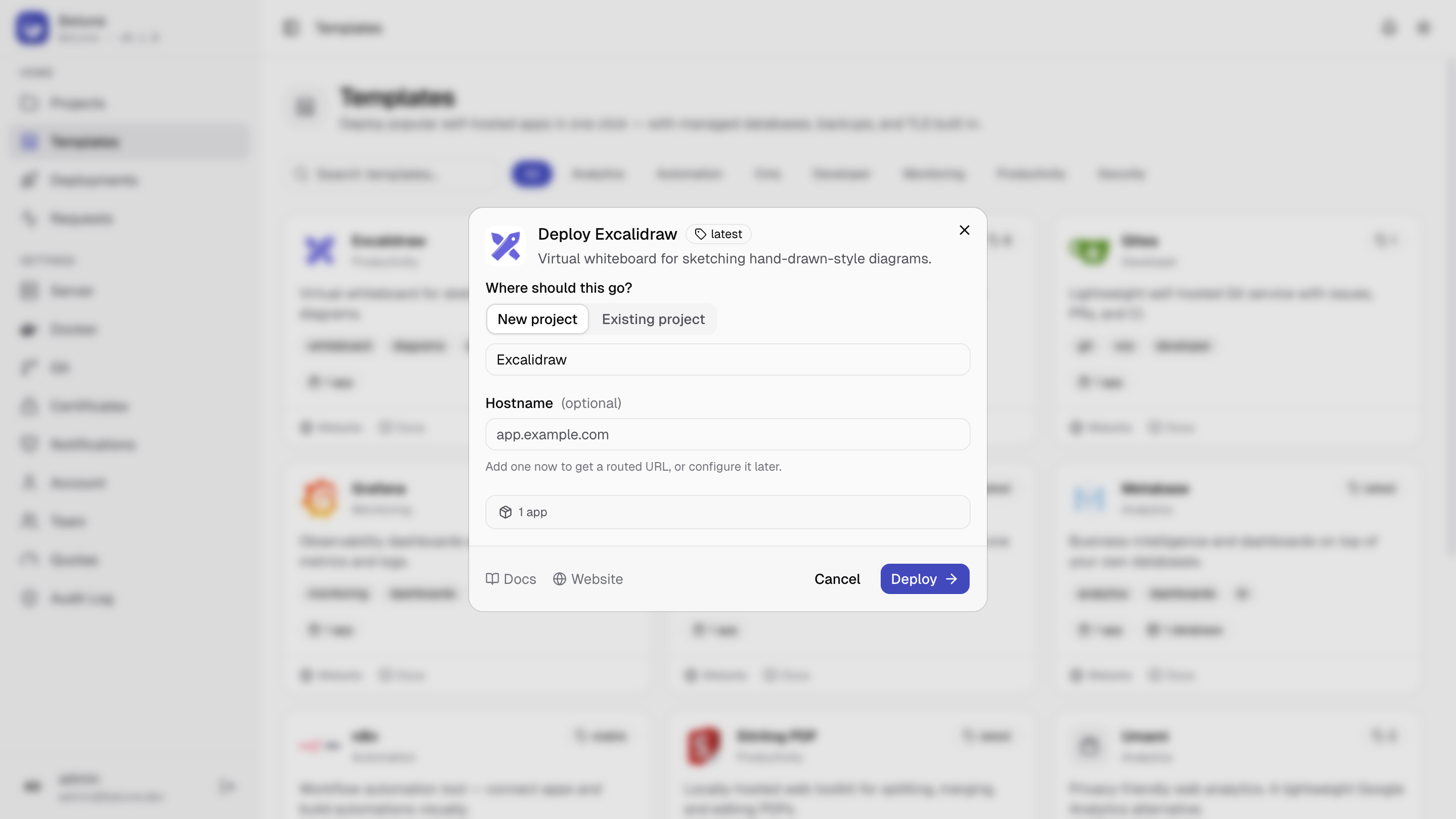
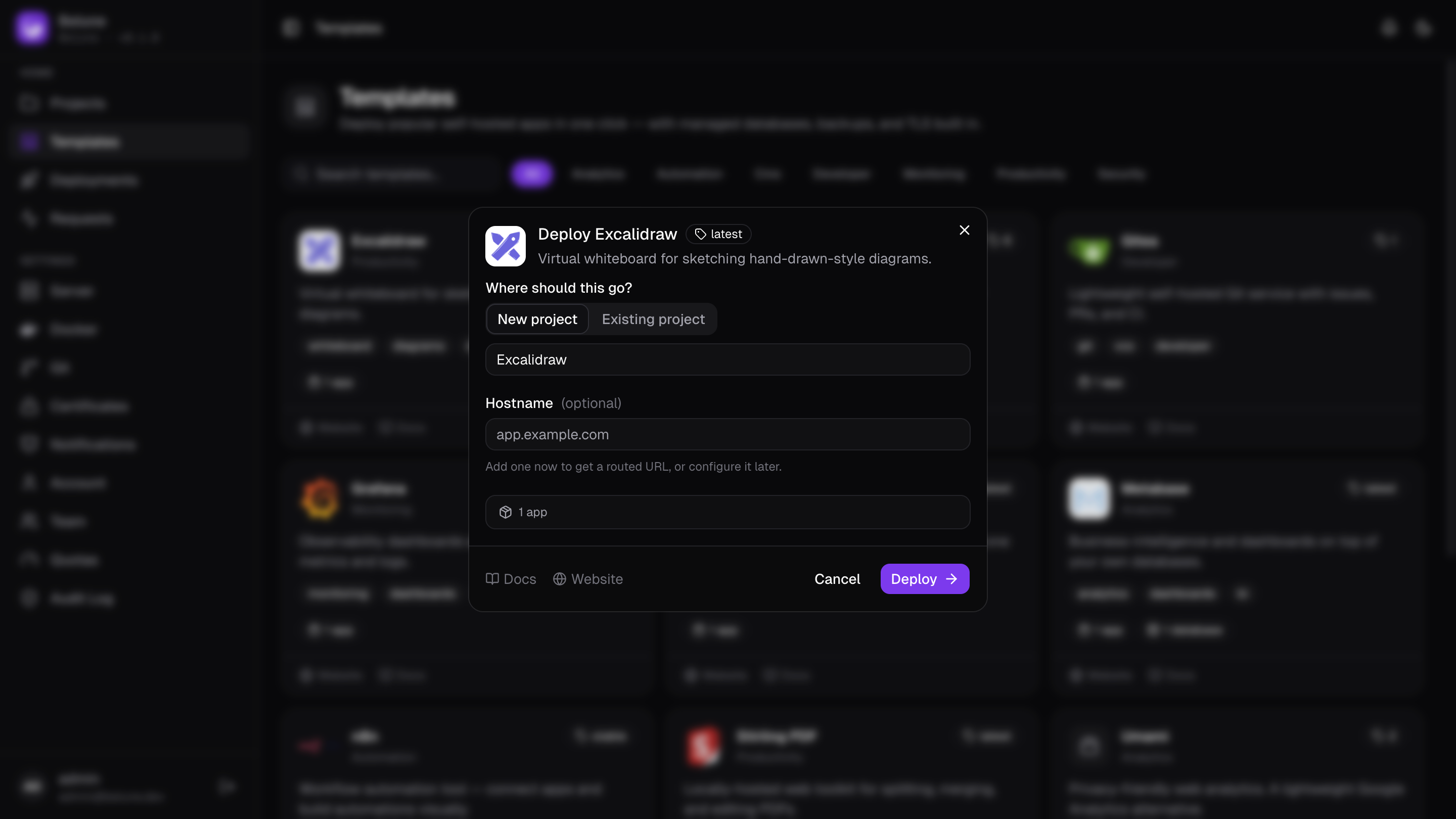
The dialog asks only for what the template can't guess:
- Where it goes — a brand-new project (named after the template by default) or an existing one.
- Name and domain for the app.
- Secrets it needs — an admin password, an API key. Fields marked secret are write-only and revealed only on demand.
- Options the template exposes, like a version or a feature toggle.
Anything the template can generate, like the encryption keys and internal passwords, is filled for you. Required databases and volumes are created as part of the same step.
A template is a starting point, not a lock-in. After it deploys, the app is a normal Belune application. You can edit its environment, domains, mounts, and resource limits like any other.
3. Deploy
Confirm, and Belune will provision the services and start the app. Watch the build and startup logs stream. When the badge turns running, open the domain you chose.
When There's No Template
If the app you want isn't in the catalog, deploy it directly — a Docker image or a Git repository covers everything a template can, with a little more setup. Templates simply save you that setup for the common cases.