Configurations
Instance settings and housekeeping.
The Server page has three tabs:
- Overview, live host health and platform totals
- Backups, control-plane backup status and history
- Configuration, instance settings and the maintenance operations below
Overview
The landing tab: live resource usage plus a snapshot of everything running on the host.
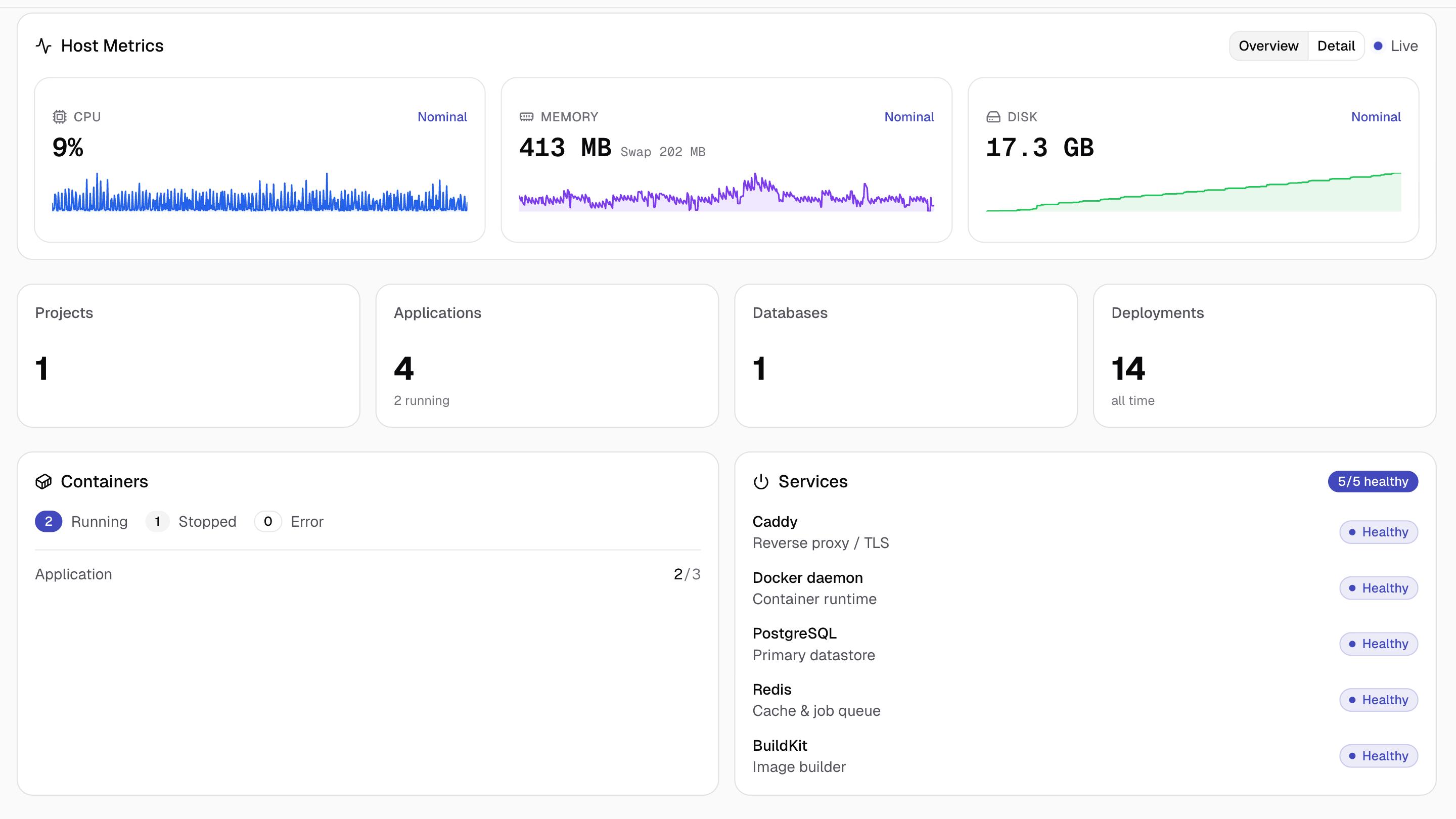
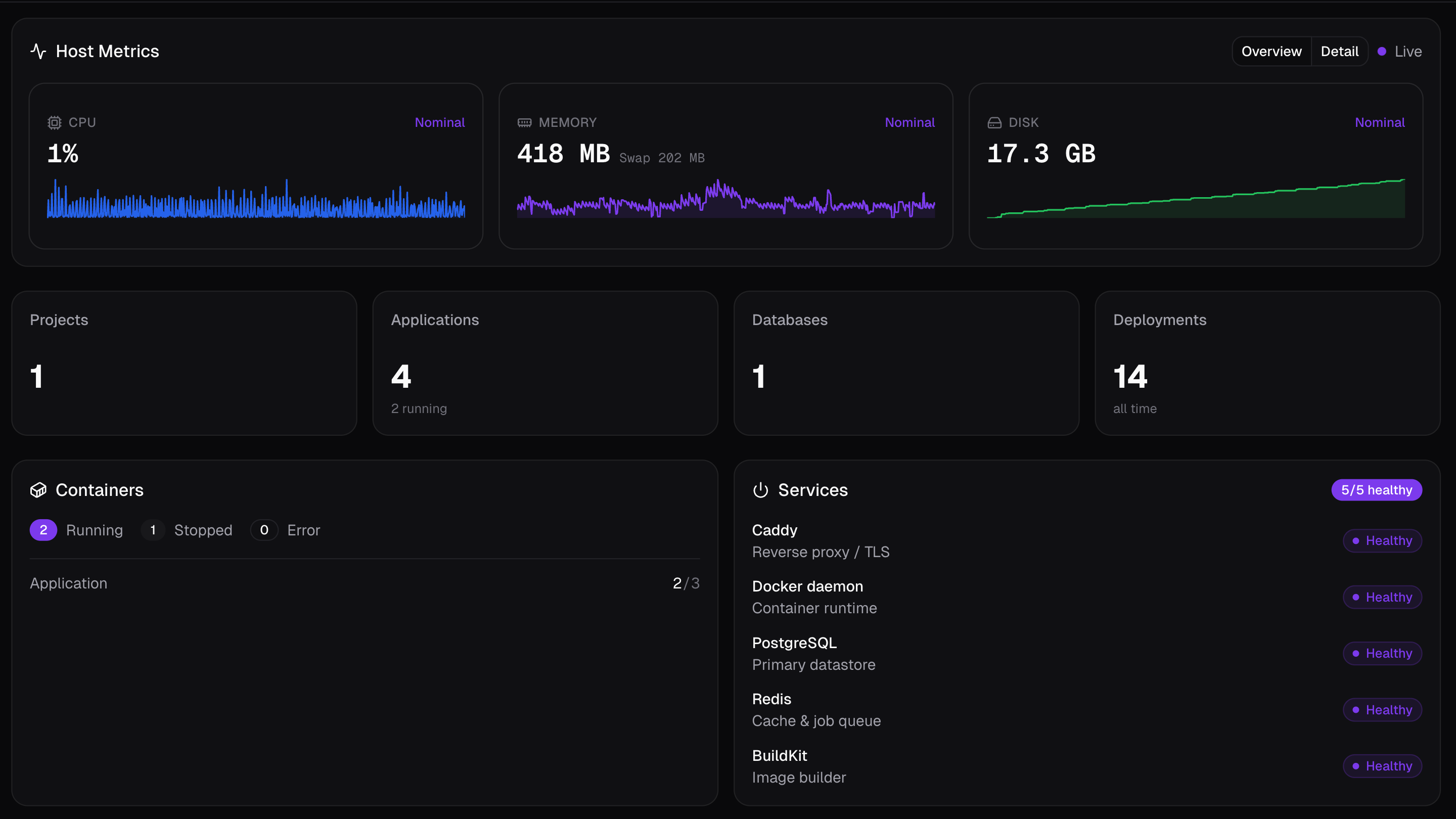
Host Metrics
CPU, memory, and disk, in two views.
- Overview shows the live last-10-minutes window as three cards — a headline value, a status word, and a sparkline.
- Detail swaps the cards for full time-series charts (CPU, memory, swap when present, disk) and adds a time-range picker: Live (the same 10-minute window, streaming) or a custom start/end range.
Memory shows swap as a secondary line under the headline, never added into it. The RAM and swap are read separately so a swapping host doesn't look healthier than it is.
Platform Totals
Four counts: Projects, Applications (with how many are currently running), Databases, and Deployments (all-time, across every application).
Containers and Services
The Containers card breaks down every container by status (running, stopped, error) and by resource type.
The Services card lists each platform service (Belune, Caddy, Redis, Postgres, BuildKit) with a healthy/down status pill and a healthy-of-total badge — a faster first check than opening Docker page when something feels off.
Backups
Control-plane backups protect the platform's own state — Belune's environment variables, Postgres database, and Caddy's TLS data — so the instance itself can be rebuilt after a failure.
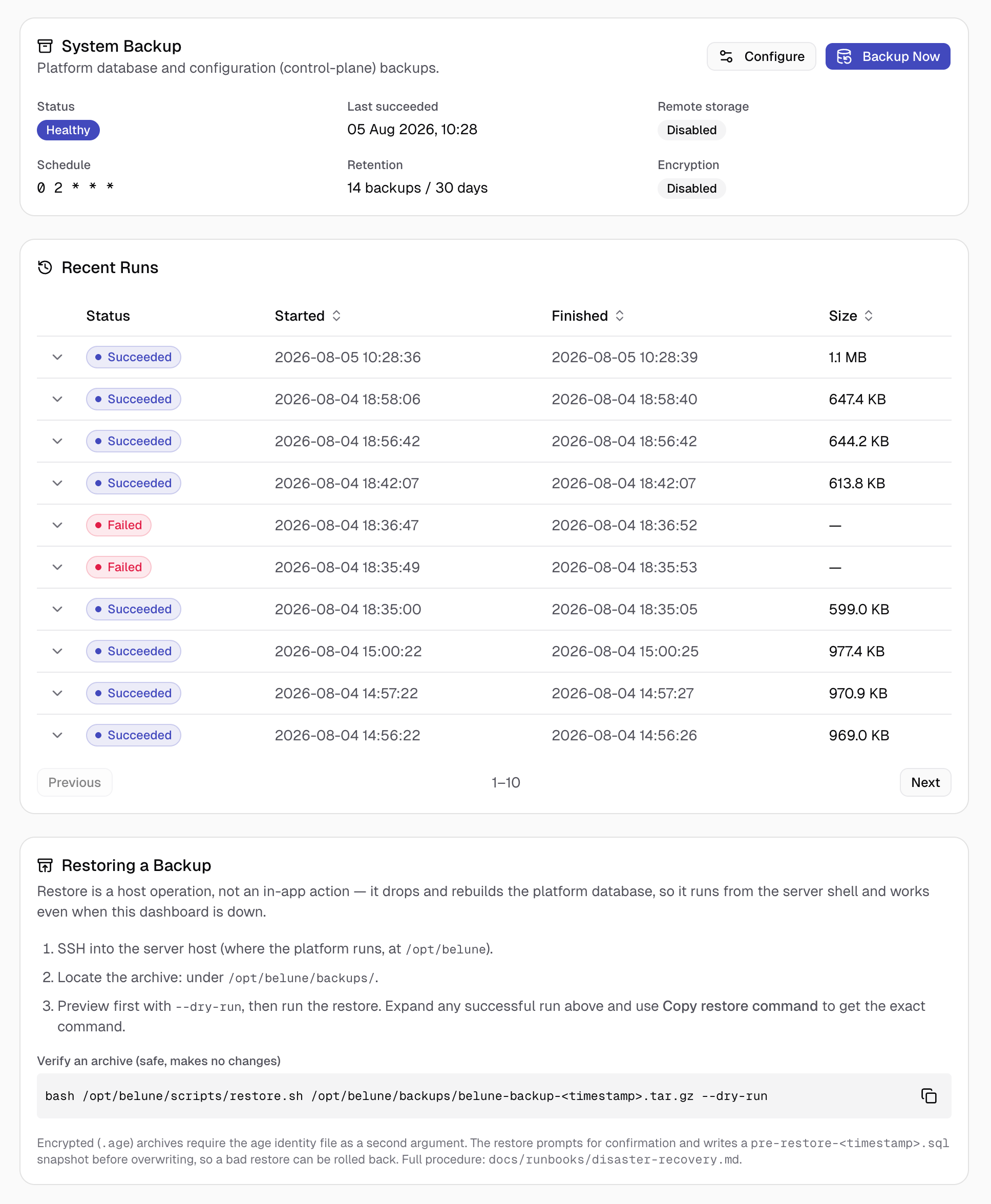
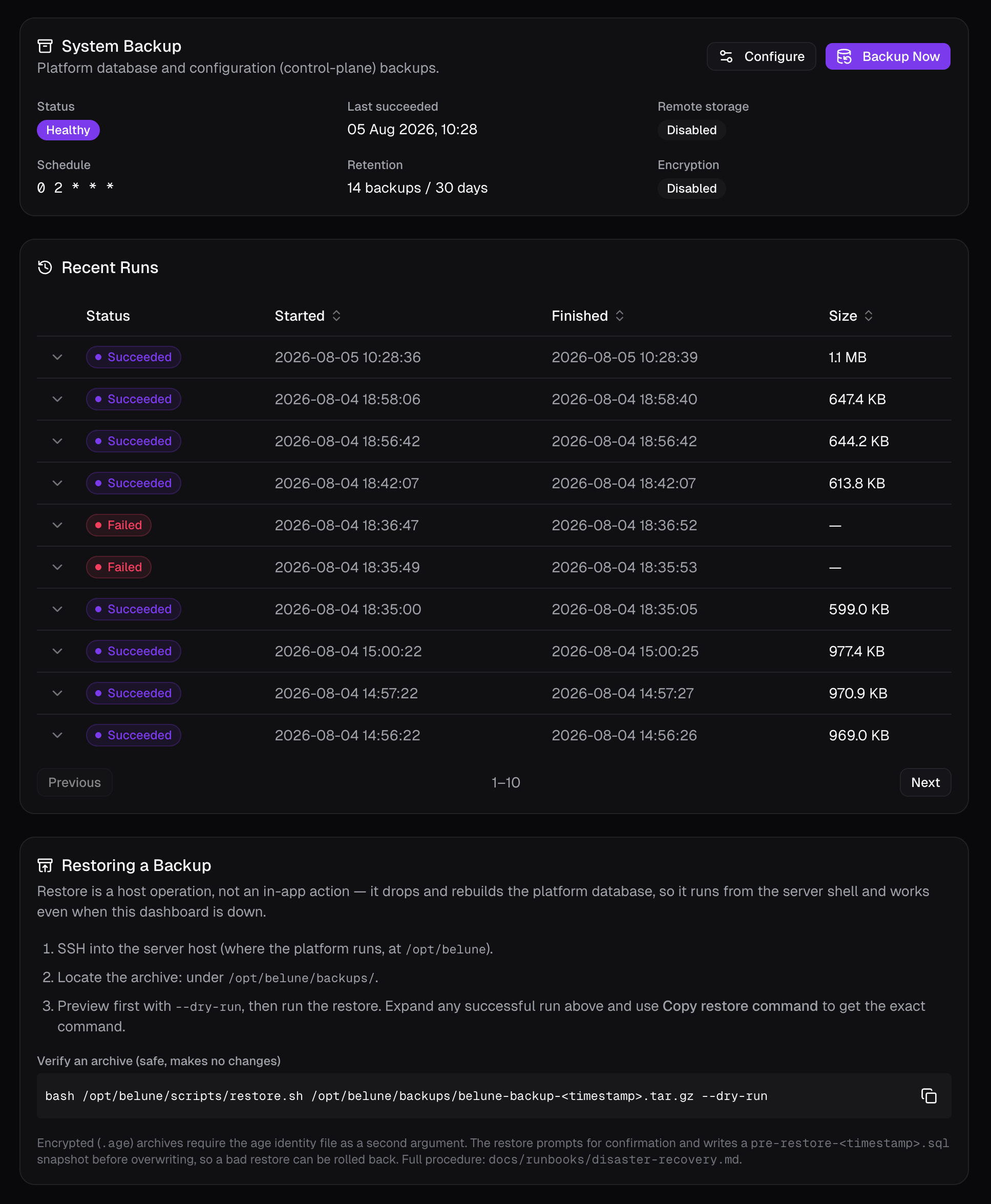
- System Backup is the status card: a healthy/last-run-failed badge, when a backup last succeeded, and a read-only summary of the current settings — remote storage on/off, the schedule, the retention policy, and whether archives are encrypted (with the age recipient). Run Backup Now triggers one outside the schedule; Configure opens the settings panel below.
- Recent Runs lists every backup with its status, timing, and size. An Encrypted badge marks archives written with age encryption — they need the private key to restore. Expanding a successful run surfaces a ready-to-copy restore command and that run's log.
What a Backup Contains
The in-app scheduler runs daily by default (02:00 UTC) with automatic rotation. Each archive holds Belune's .env, a full Postgres SQL dump, and Caddy's TLS data (certificates + config).
About the backup-remote.env file
When you've configured remote storage from the dashboard, the archive also includes backup-remote.env, so a restore can tell where the backups themselves live.
Scheduled and Run Backup Now backups execute natively in the worker. scripts/backup.sh is the host/CLI equivalent — used for manual runs and by the updater before a version move — and produces the identical archive format, so either producer's backups are interchangeable and every run shows on the Recent Runs table.
Local archives are written to /opt/belune/backups/, which don't survive losing the host — they're not disaster recovery on their own. Pair them with a remote destination to keep a recoverable copy off-box.
Configuration Panel
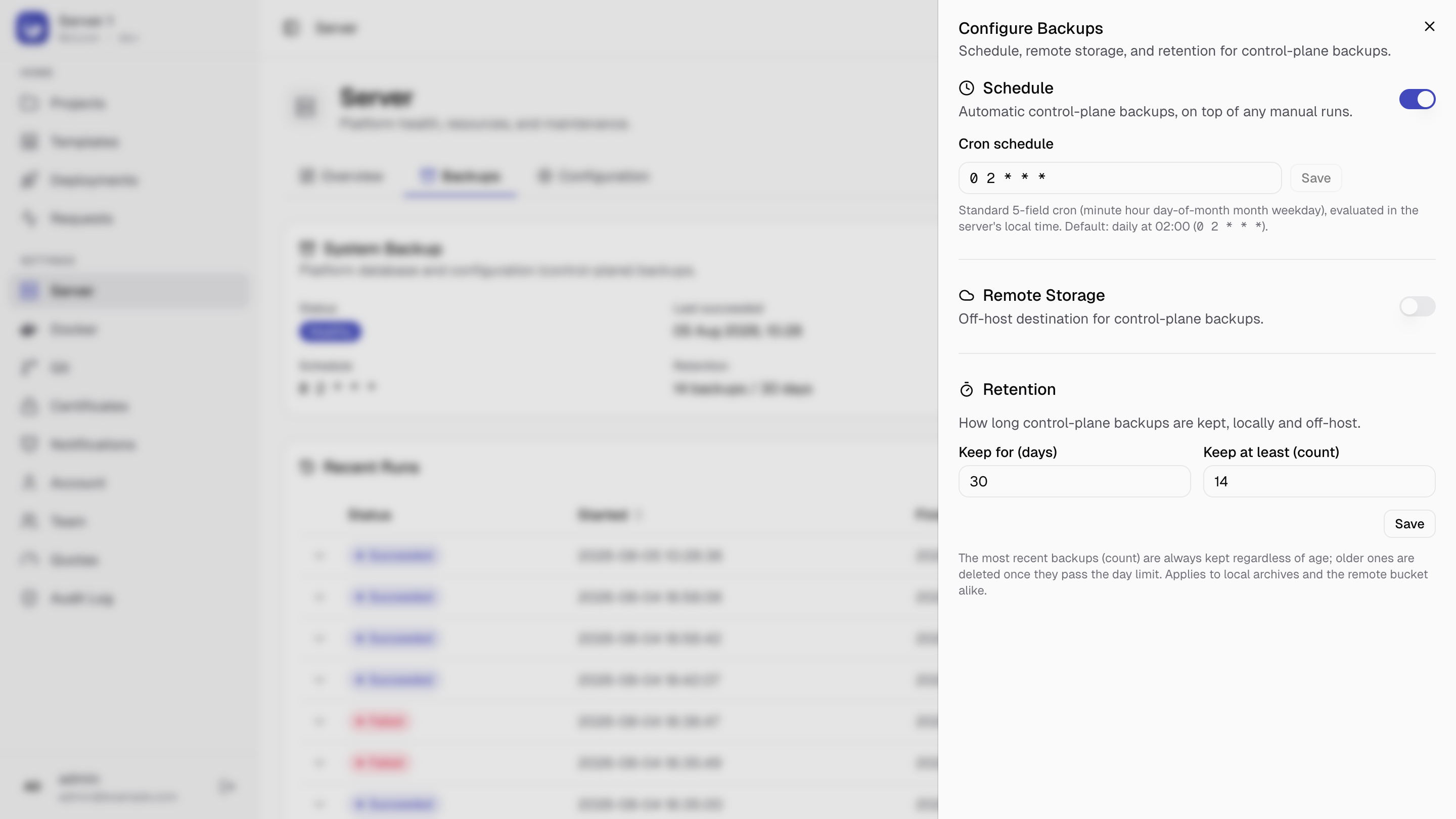
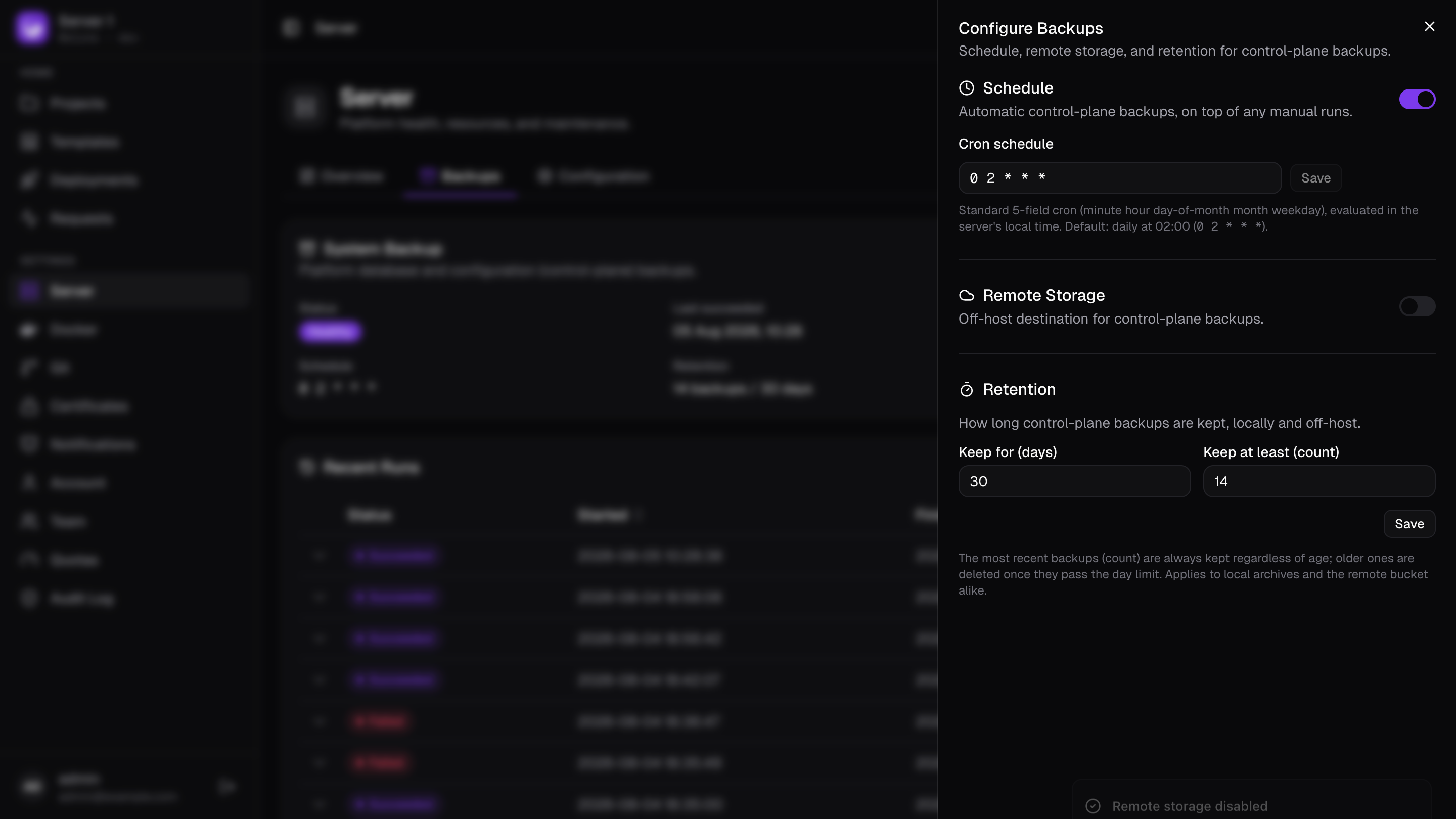
The Configure button on the System Backup card opens the Configure Backups panel, which holds everything that shapes a backup, split into three sections you save independently:
- Schedule — toggle the automatic backup on or off and set its cron expression (standard 5-field, server local time; defaults to daily at 02:00).
- Remote Storage — the off-host S3-compatible destination: a form with an enable toggle, bucket, region, endpoint, prefix, access key, and secret key fields, and a Test connection button that verifies reachability without saving. See Off-Host (S3) Storage below for how and where it's stored.
- Retention — how many backups to Keep for (days) and Keep at least (count). The most-recent count is always kept regardless of age, and older archives are pruned once they pass the day limit. Applies to local archives and the remote bucket alike.
Off-Host (S3) Storage
An on-host backup doesn't survive losing the host, so for production send archives off-box too — set it up from the Remote Storage section of the Configuration panel above. Saving it writes backup-remote.env on the server (mode 0600), which is read fresh on the very next backup — no restart needed.
Why a second plain-text file exists
backup-remote.env is readable by both Belune and host bash, so the Belune worker and scripts/backup.sh can each obtain the backup config and upload archives to the S3 destination.
Belune also gets write access via the API, so it can update the values when you edit them from the dashboard.
Setting the same variables in .env still works and is the fallback for any field you haven't set from the dashboard (useful for a first boot, or managing config as IaC):
BACKUP_REMOTE_ENABLED=true
BACKUP_S3_ENDPOINT=            # empty = AWS S3; or e.g. s3.us-west-004.backblazeb2.com
BACKUP_S3_REGION=us-east-1
BACKUP_S3_BUCKET=my-belune-backups
BACKUP_S3_ACCESS_KEY=...
BACKUP_S3_SECRET_KEY=...
The same retention policy applies to objects under the bucket prefix.
Encrypt the Backups (Optional)
If you need to encrypt the backups, set the BACKUP_ENCRYPTION_KEY variable in .env to an age public key, and archives are written as .tar.gz.age:
age-keygen -o ~/.age/belune.key # keep the private key safe, OFF the serverBACKUP_ENCRYPTION_KEY=age1ql3z7hjy54pw...Store the private key somewhere else, separate from the backups; you'll need it to restore.
Setting the encryption key is intentionally a host-only action. Because the archive contains every platform secret (Belune's .env, database credentials), changing what backups are encrypted to requires access to the host itself, not just an admin session.
Unlike remote storage, the encryption key is read once at startup, so restart Belune for the worker to pick it up (the backup.sh CLI re-reads .env on each run and doesn't need this):
cd /opt/belune && docker compose restart beluneThe dashboard then reflects it read-only: the System Backup card shows Encryption: Enabled with the recipient, and every encrypted run carries an Encrypted badge in Recent Runs.
Restoring
Restoring is deliberately not an in-app action. It drops and rebuilds the platform database, so it must run from the host shell and work even when the dashboard itself is down.
Restoring overwrites the current database. restore.sh snapshots the existing database first (to pre-restore-<timestamp>.sql) so a bad restore can be rolled back — but treat it as destructive.
Preview any archive first with --dry-run — this makes no changes:
bash /opt/belune/scripts/restore.sh --dry-run /tmp/belune-backup-<timestamp>.tar.gzThen restore:
bash /opt/belune/scripts/restore.sh /tmp/belune-backup-<timestamp>.tar.gzOr pass the age identity if the archive is encrypted:
bash /opt/belune/scripts/restore.sh /tmp/belune-backup-<timestamp>.tar.gz.age ~/.age/belune.keyThe scripts/restore.sh script will:
- verify the archive
- prompt for confirmation (type
restore, or pass--yes) - restore
.env(andbackup-remote.env, if the archive carries one) - stop
beluneto release database connections - snapshot the current database and recreate it from the dump
- restore Caddy TLS data
- bring the
belunestack back up only on success — printing the exact rollback commands if it fails partway.
Manually Verify a Backup
The safest check is a dry-run restore. If you need to inspect manually:
tar -tzf belune-backup-<timestamp>.tar.gz | head
tar -xzf belune-backup-<timestamp>.tar.gz --strip-components=1 '*/postgres.sql' -O | head
Belune's CI runs a full restore drill on every release and blocks the release if the drill fails, so backups are guaranteed restorable.
Recovery Objectives
On the reference VM (2 vCPU / 4 GB RAM, local SSD):
| Objective | Target | Notes |
|---|---|---|
| RPO | 24 h | Default daily backup. Reduce with a tighter cron in the Schedule section, or run one on-demand. |
| RTO | 15 min | restore.sh + service restart on a pre-provisioned host. |
Before upgrading
Run a backup before upgrading Belune — a minor release can cross a forward-only migration boundary. See Updating for the safe-upgrade routine.
Configuration
Instance-wide settings and host housekeeping — the instance's identity and the dashboard's own domain/TLS, how long metrics and logs are kept, outbound email, and the maintenance operations for keeping the host tidy.
Instance
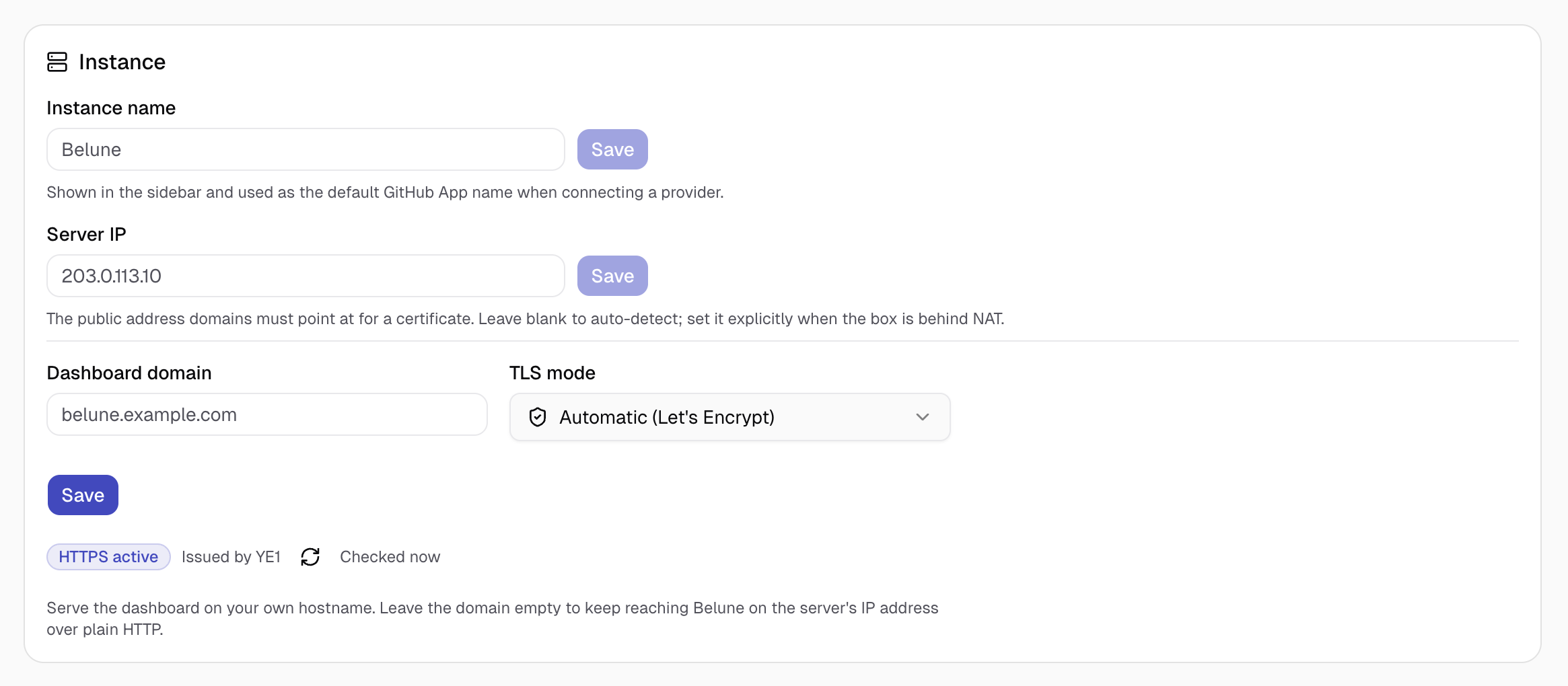
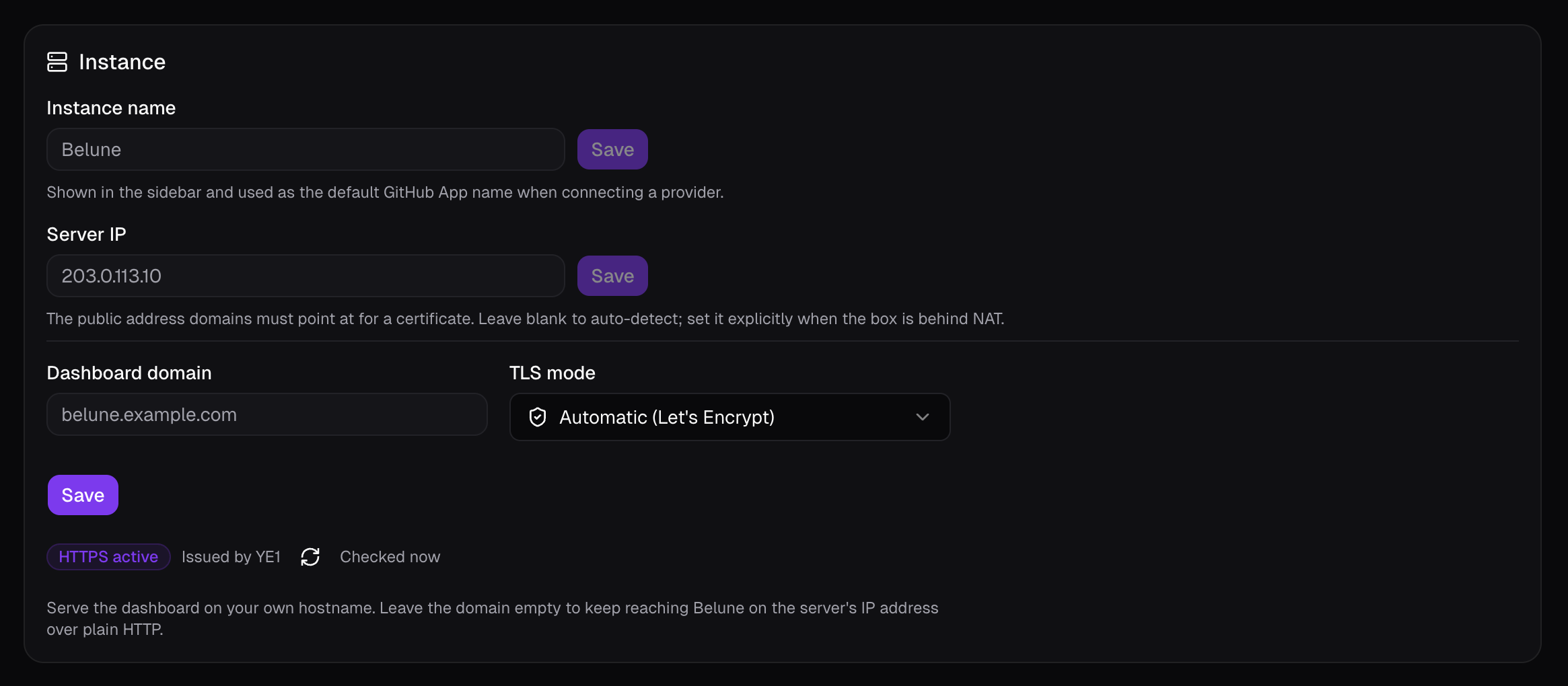
- Instance name — the display name shown in the sidebar, and the default name used when connecting a GitHub App.
- Server IP — the address domains should point at for DNS and certificate issuance. Left blank, it falls back to the IP detected at install time; set it explicitly if the host is behind NAT or its address changed.
- Dashboard domain & TLS — Belune answers on the bare server IP over plain HTTP out of the box (that's how you reach the first-run setup page). Naming a domain here gives the dashboard its own route in Caddy, which is what lets Caddy request a certificate for it. See Certificates for more details.
The HTTPS status badge reflects the live state: HTTPS active, Waiting for certificate, Expiring, Expired, Failed, or HTTPS off, with a manual recheck button and a timestamp for when it was last checked.
Metrics Retention
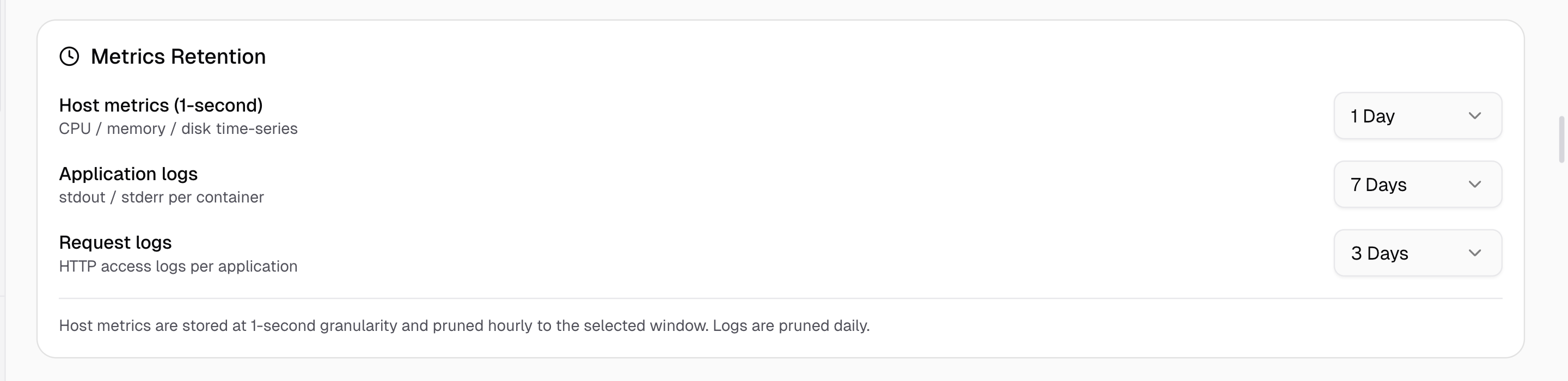
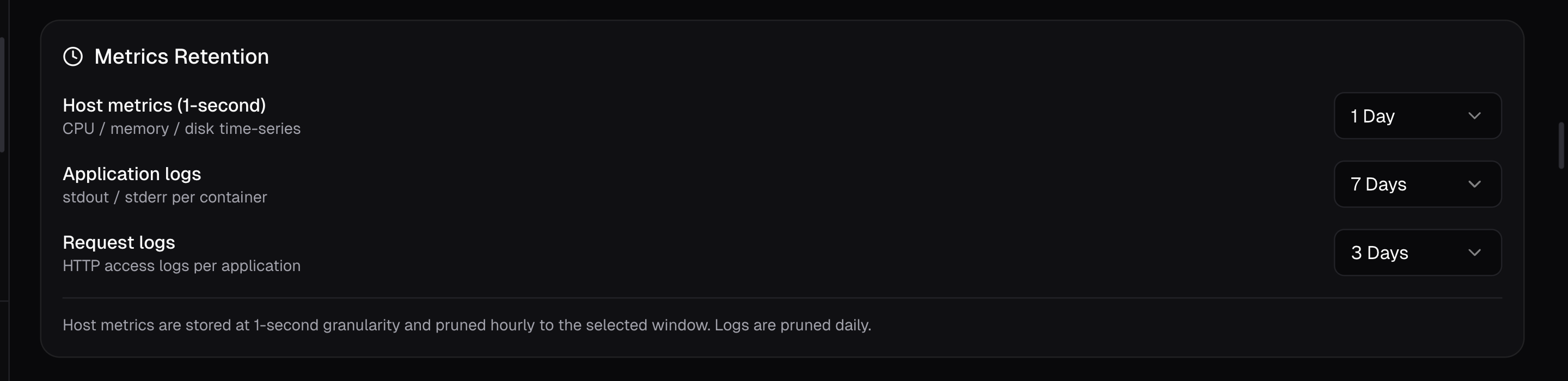
Three independent retention windows, each a dropdown of presets:
- Host metrics — CPU/memory/disk time-series for the Server page's own charts. Recorded at 1-second resolution, so presets are short (1 or 2 days) and the data is pruned hourly.
- Application logs — stdout/stderr per container. Presets range from 3 days to a year, or forever.
- Request logs — per-application HTTP access logs. Same preset range as application logs.
Logs are pruned daily and host metrics are pruned hourly to whatever window is selected.
Email (SMTP)
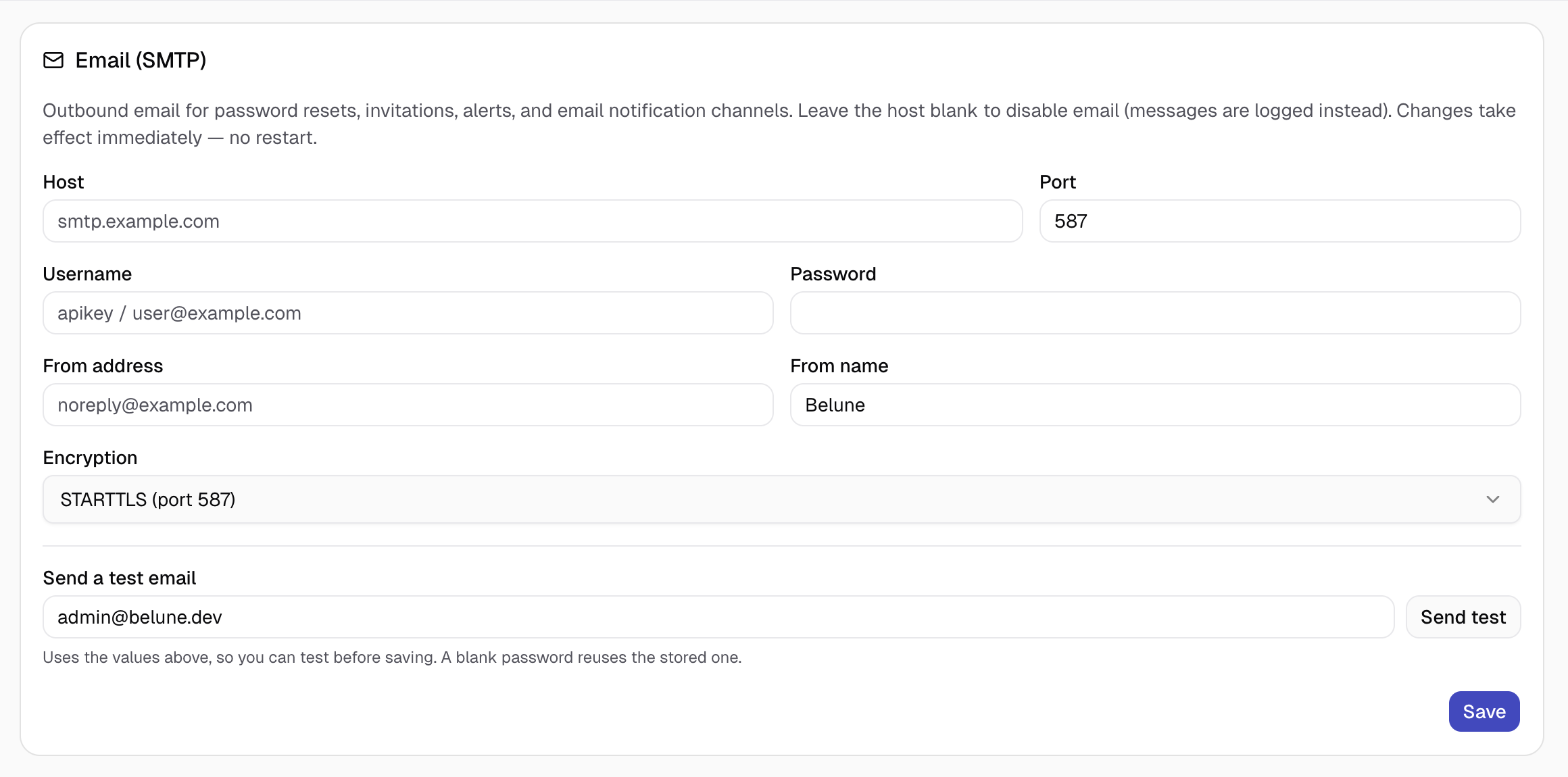
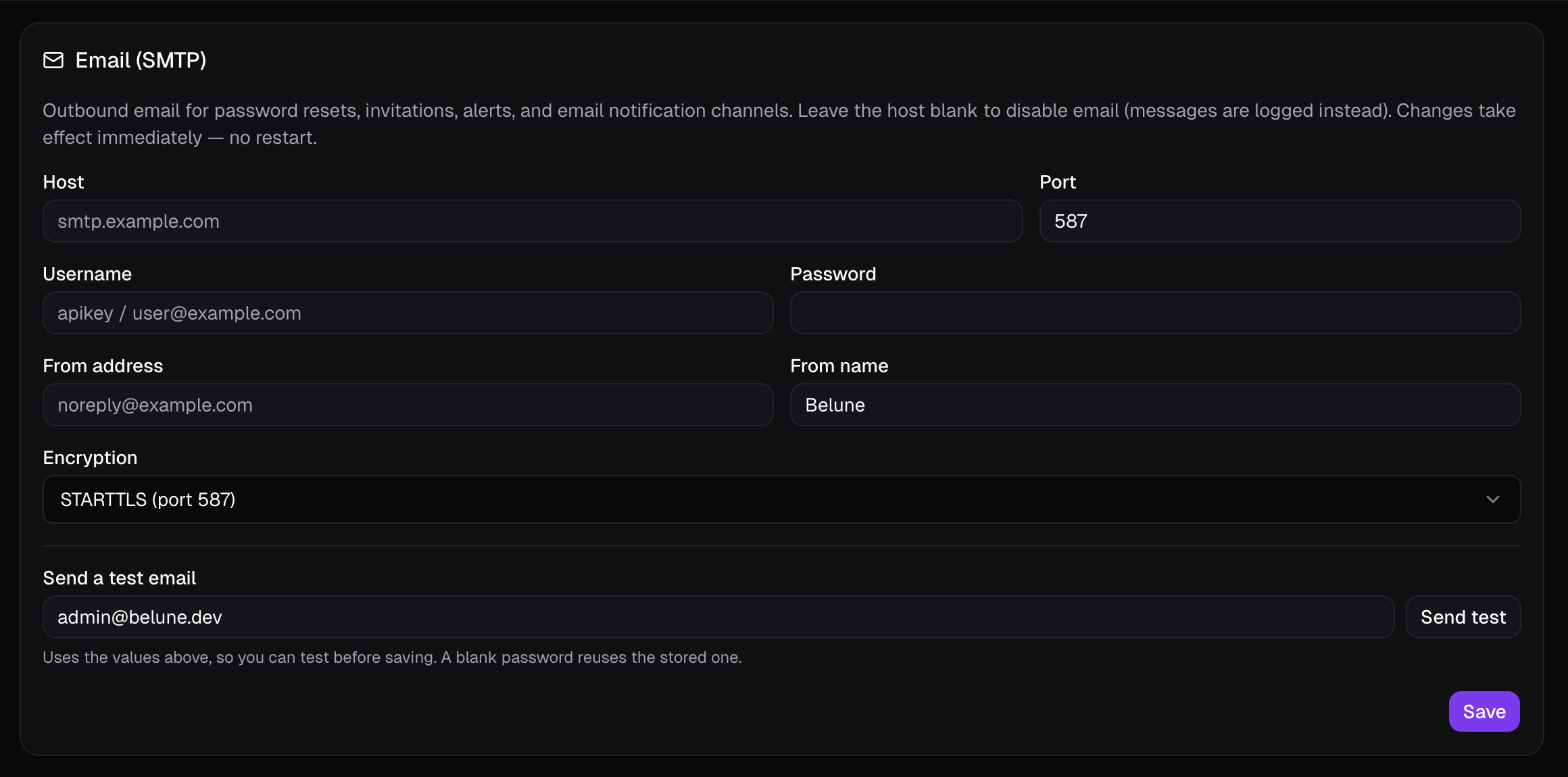
Outbound email for password resets, user invitations, and any default notification channel of type Email. Configure a host, port, username/password, from-address, from-name, and encryption mode (STARTTLS on 587, TLS/SSL on 465, or None). Use Send a test email to verify the configuration against a real inbox before relying on it and changes take effect immediately, no restart needed.
Leave the host blank to disable email entirely, any outgoing messages are logged instead of sent, which is useful in development.
Maintenance
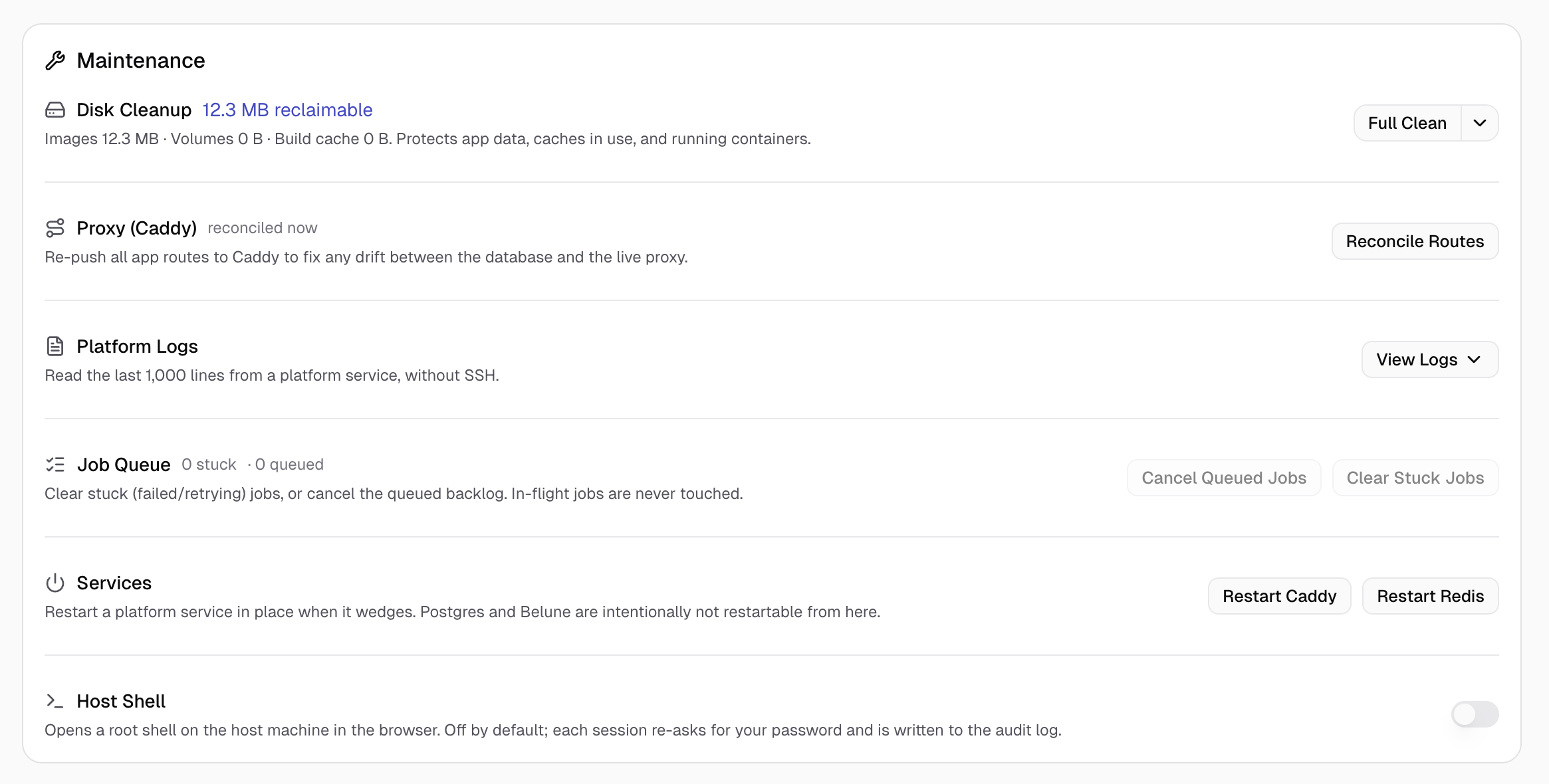
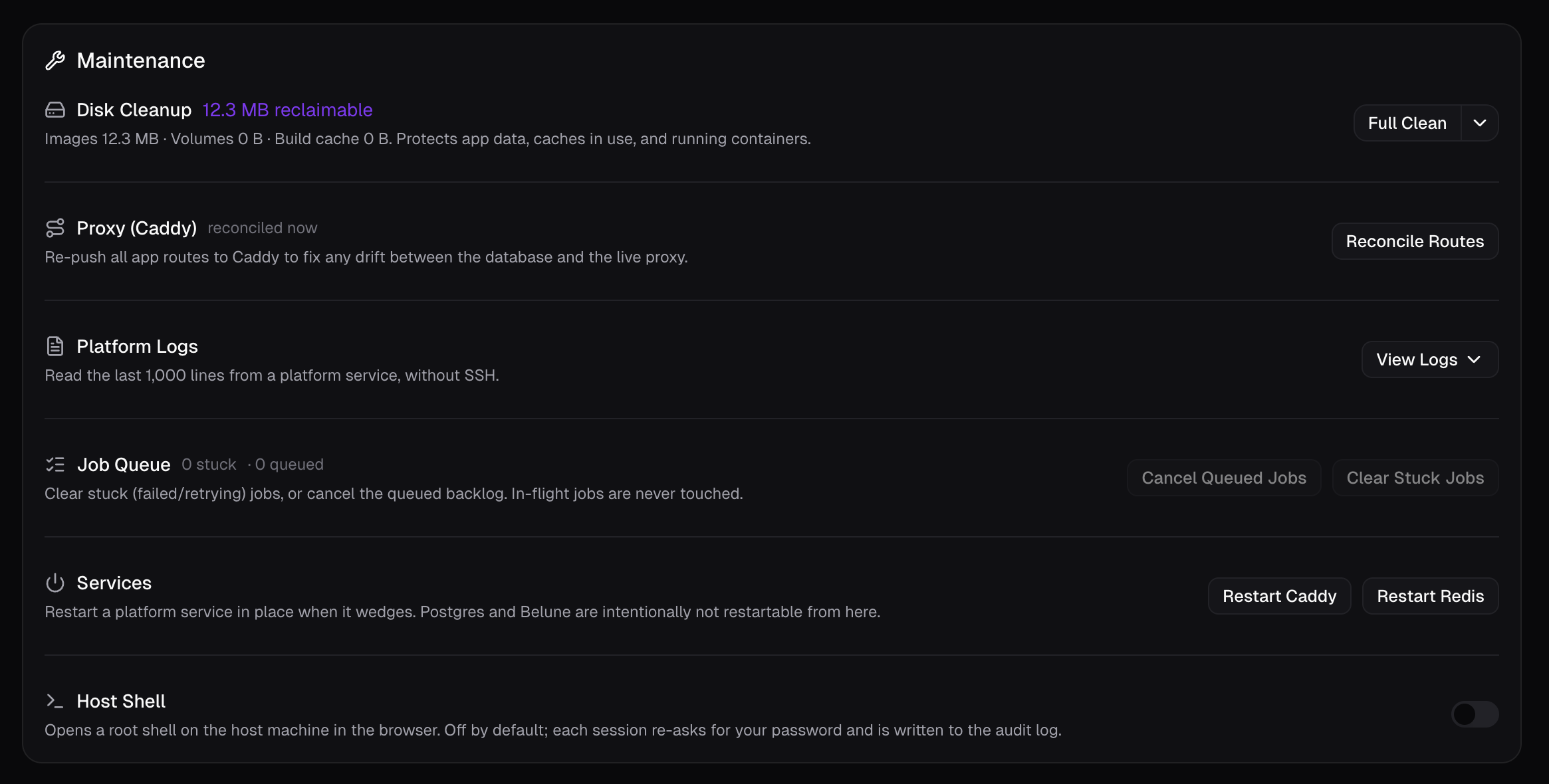
Six independent housekeeping blocks, each self-contained:
Disk Cleanup
Shows reclaimable space broken down by images, volumes, and build cache. Full Clean runs every cleanup step at once (old deployments, dangling images, unused volumes, build caches, orphaned containers), the dropdown next to it runs any one of those alone.
Daily automatic cleanup in the same dropdown runs the full job once a day on its own, if turned off, disk is only reclaimed when you trigger it manually.
Every cleanup step protects app data, in-use caches, and running containers — it only ever removes what's genuinely unreferenced.
Proxy (Caddy)
Reconcile Routes re-pushes every application's routes to Caddy's admin API, fixing any drift between what the database says should be routed and what the live proxy actually has configured. The card shows when it last ran and how many routes were added or removed, including any error from the last run.
Platform Logs
Reads the last 1,000 lines from a platform service (Belune, Caddy, Redis, Postgres, or BuildKit) without needing SSH access to the host. Useful as a first stop when something looks wrong and you don't want to reach for a terminal yet.
Job Queue
Shows how many jobs are stuck (failed or retrying) versus queued (pending, not yet started). Clear Stuck Jobs removes failed/retrying tasks from every queue; Cancel Queued Jobs removes the pending backlog. Neither ever touches a job that's actually in flight — only ones that are stuck or haven't started.
Services
Restarts a platform service in place when it wedges: Caddy or Redis. Restarting Caddy briefly drops connections on ports 80/443 while it comes back up; restarting Redis (the job broker) drops any job that was queued but not yet running.
Postgres and Belune itself are intentionally not restartable from here; to restart those, perform a host-level restart of the compose stack instead.
Host Shell
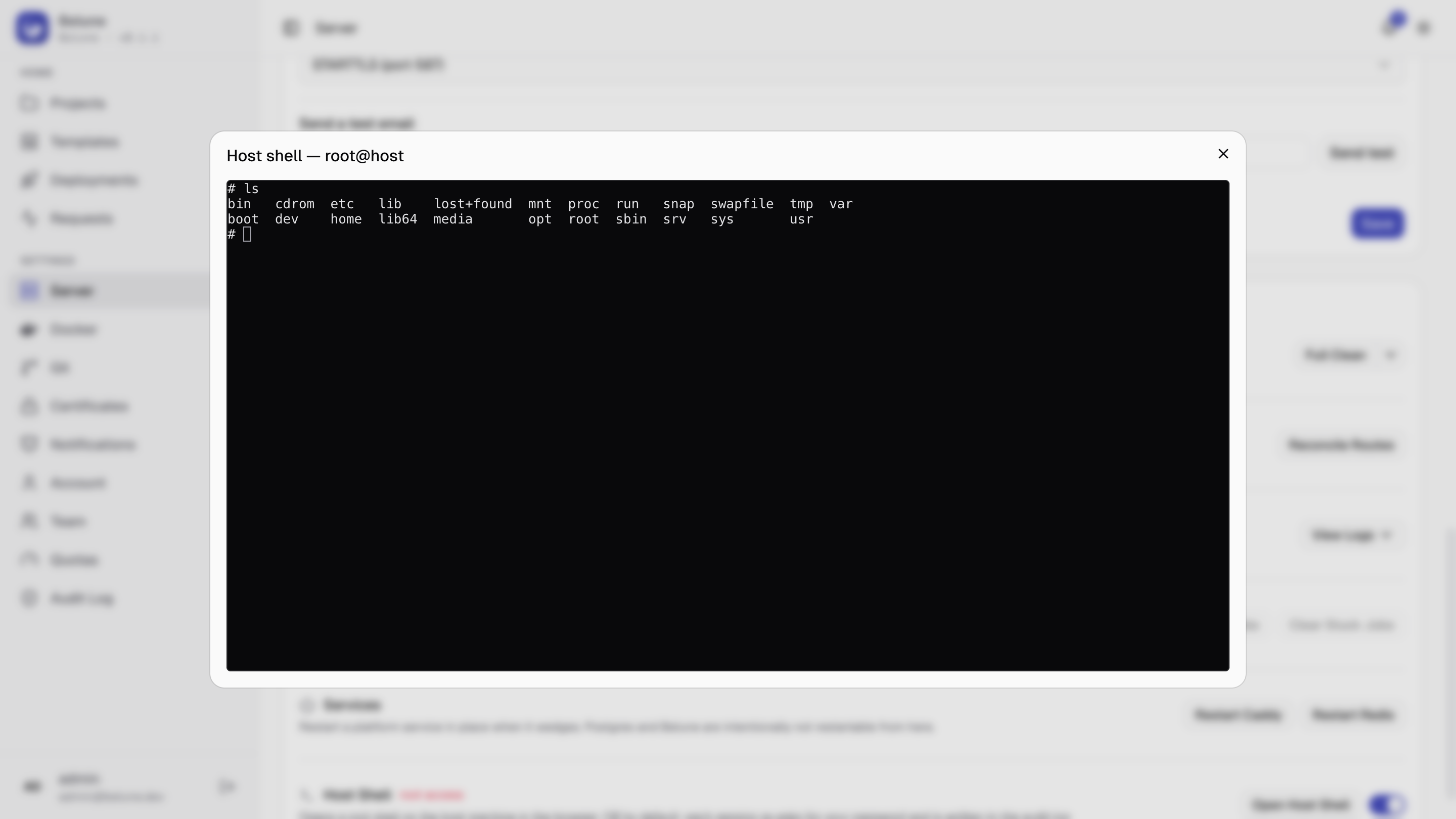
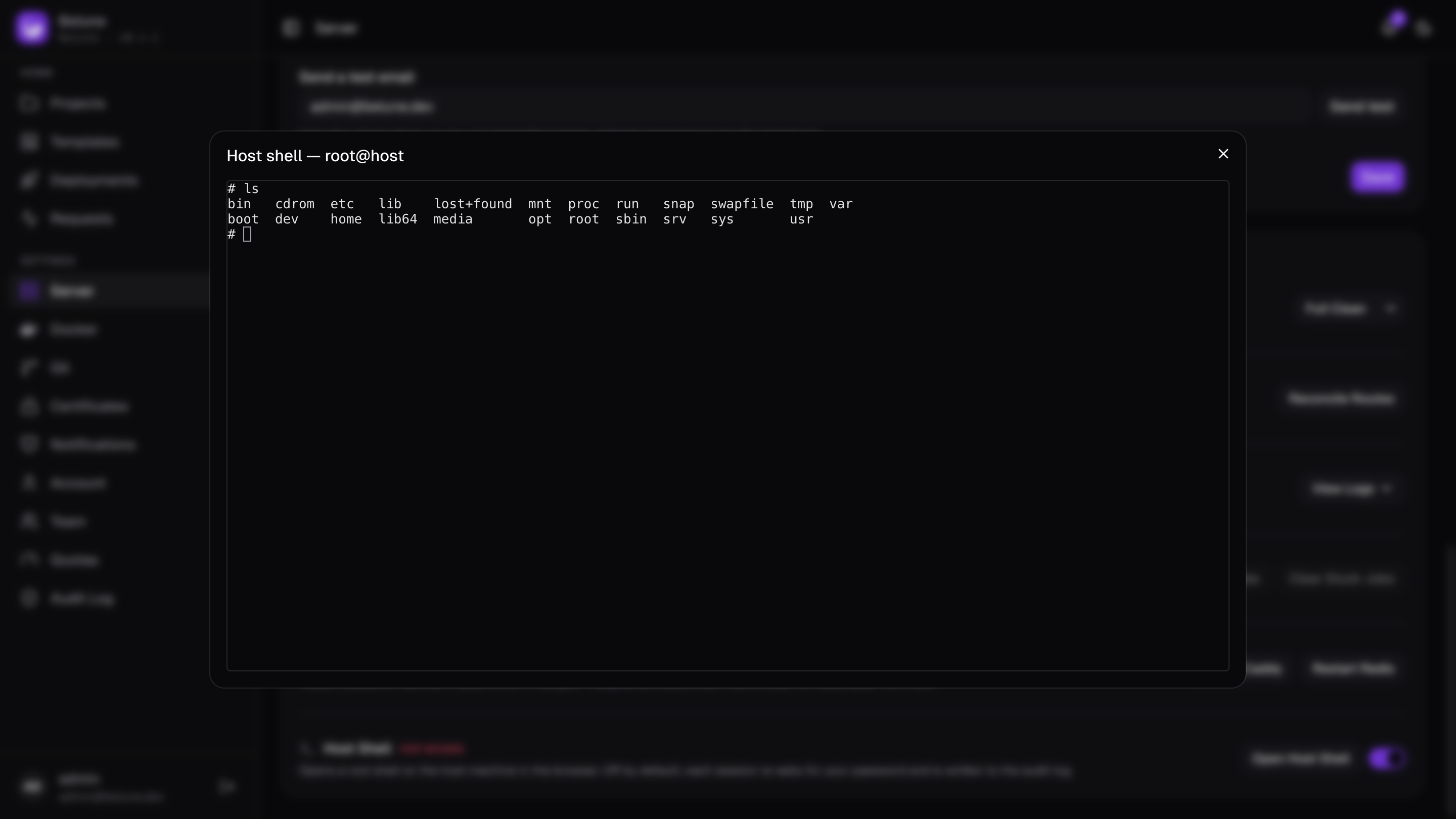
Off by default. Turning it on requires an explicit confirmation, since it's a genuine increase in blast radius: once enabled, Open Host Shell re-asks for your password (step-up auth) and then opens a full root shell on the host machine.