Git
Connect GitHub, GitLab, Bitbucket, or Gitea for private repositories and push-to-deploy.
Git integrations let Belune clone private repositories and deploy automatically on push.
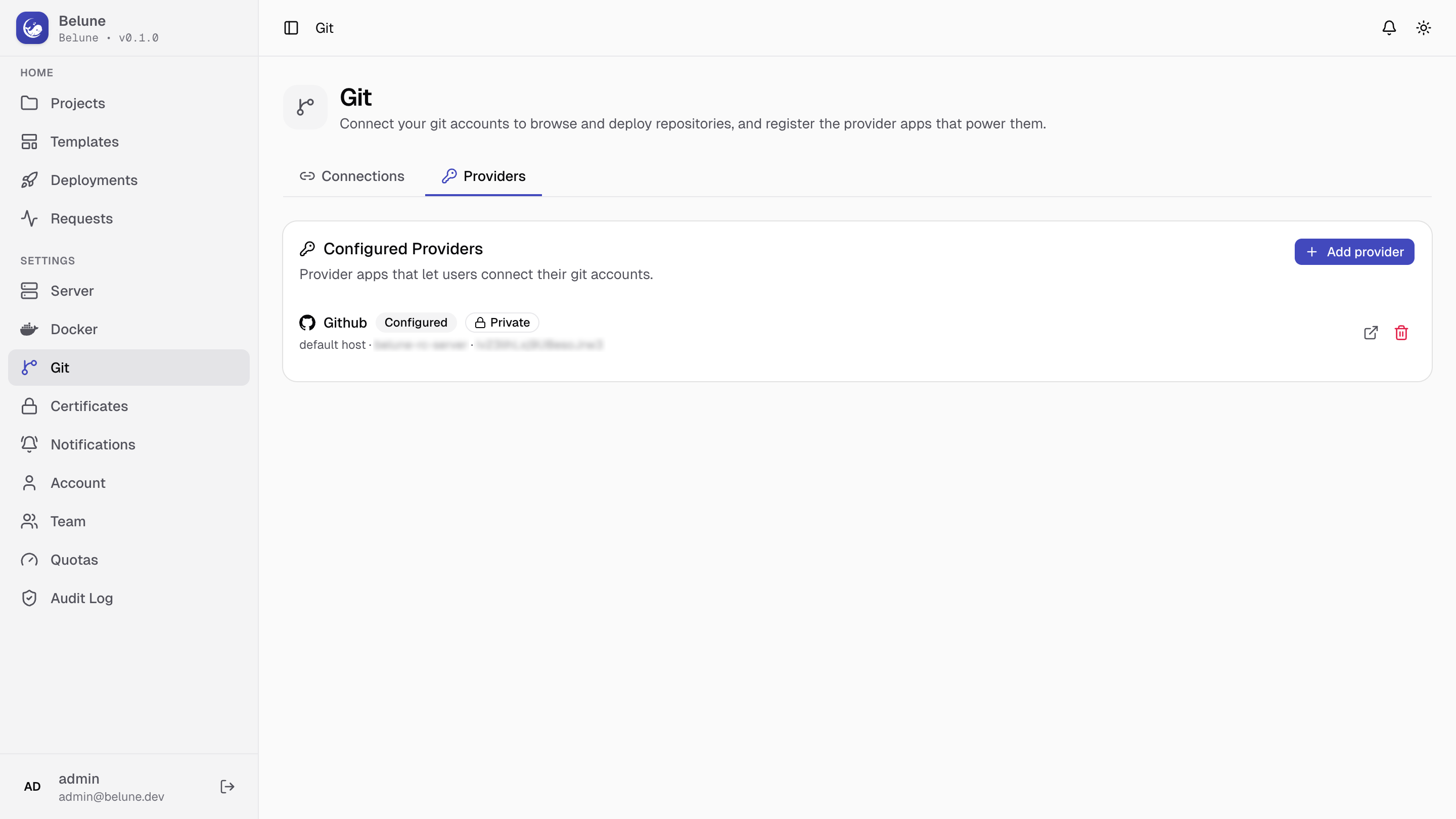
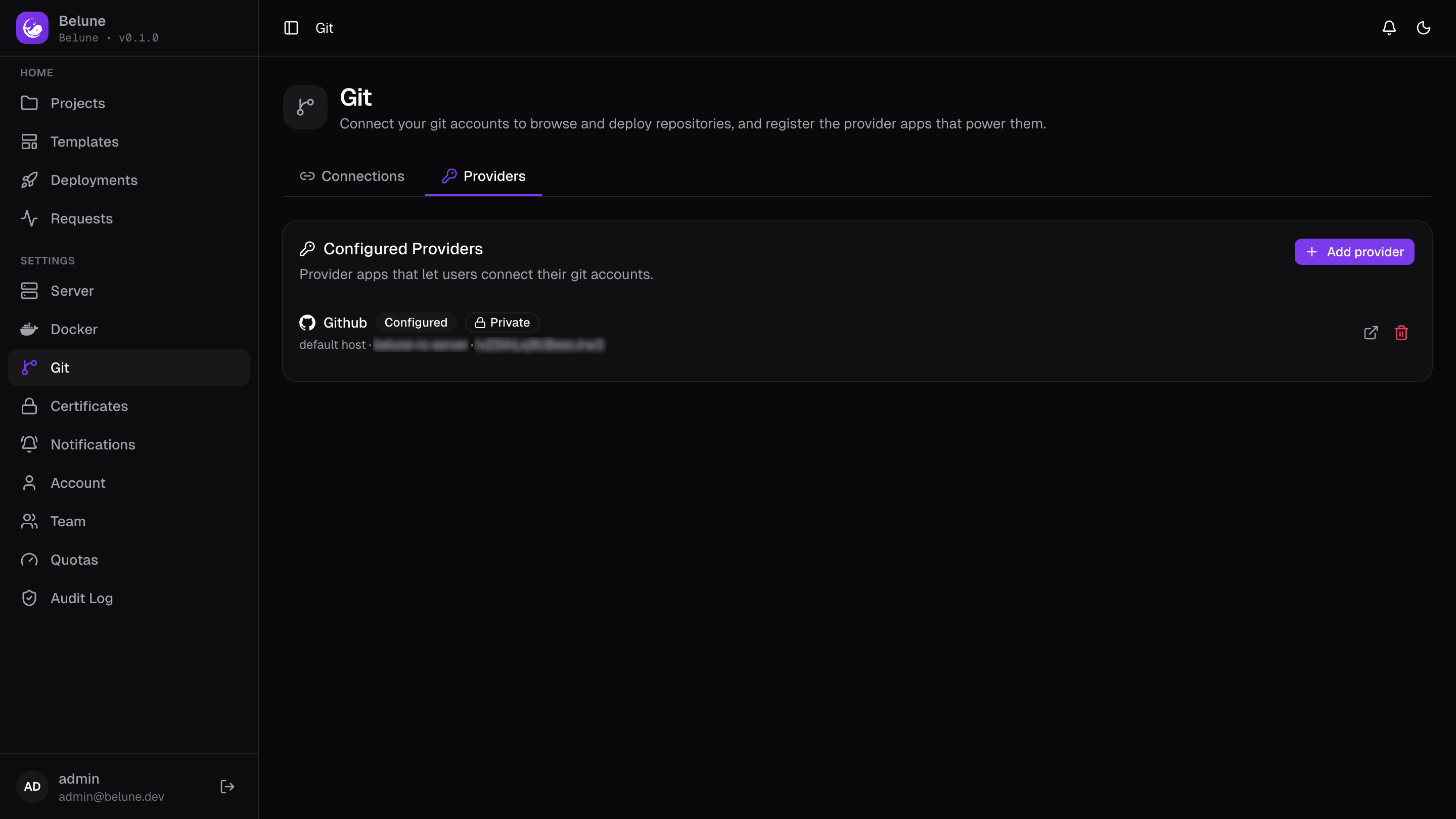
Providers vs. Connections
- A Provider is an app registration — a GitHub App, or an OAuth client ID/secret pair, that makes connecting possible at all.
- A Connection is one actual linked account, authenticated through one of those providers.
Registering providers is an admin-only capability, since a provider app is a platform-wide credential, not a personal one.
Supported Providers


Four providers are supported, added from Providers → Add provider:
- GitHub — cloud-hosted, and the only provider with the richer GitHub App flow (see below).
- GitLab — cloud-hosted by default, or self-hosted with an optional base URL.
- Bitbucket — cloud-hosted.
- Gitea — self-hosted only; a base URL is required.
Register a GitHub App
GitHub gets a dedicated flow instead of manual OAuth:
- On the create provider dialog, pick GitHub provider
- On Visibility field choose Private (only your admin account can connect through it) or Public (any team member can connect their own account)
- On the Organization field, optionally scope the provider to an organization
- Click Create GitHub App button. You're redirected to GitHub to create and install the App from a manifest
- After redirect back, the provider is configured automatically.
Register an OAuth Provider
GitLab, Bitbucket, and Gitea are registered as standard OAuth apps:
- On the create provider dialog, pick the specified provider
- On the Visibility field set the provider visibility (Private/Public, same meaning as above)
- On the Base URL field, enter base URL if self-hosted (required for Gitea)
- Go to the provider settings page, register Belune's callback URL shown in the dialog (
/api/git/integrations/callback).- GitLab: On the group page, go to Settings → Applications
- Bitbucket: Go to Workspace settings → Apps and features → OAuth clients
- Gitea: Go to Settings → Applications → Create a new OAuth2 Application
- Enter the Client ID and Client secret from an OAuth app you create on that provider.
The client secret is stored encrypted and is never shown again after saving.
Connect Your Account
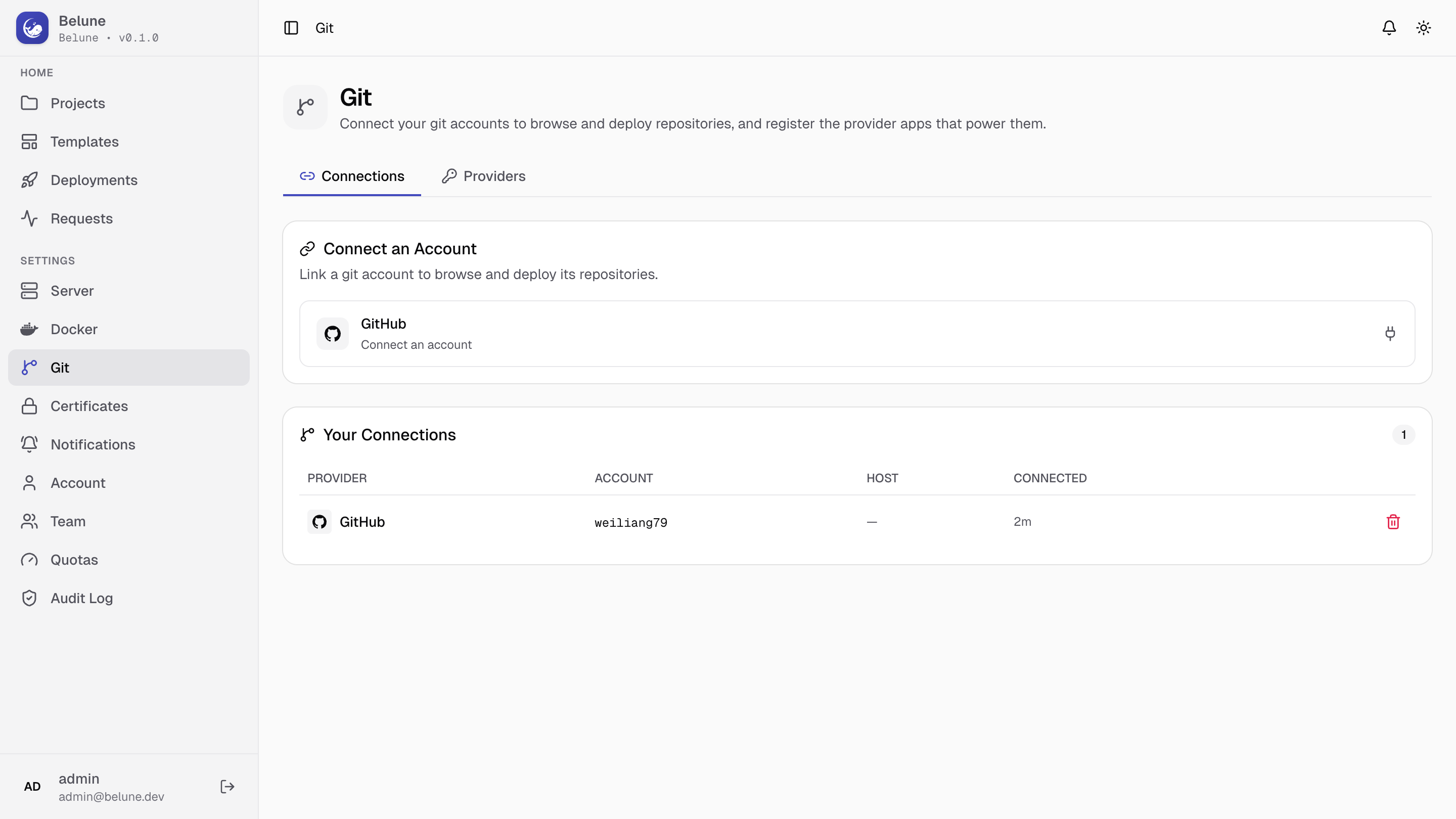
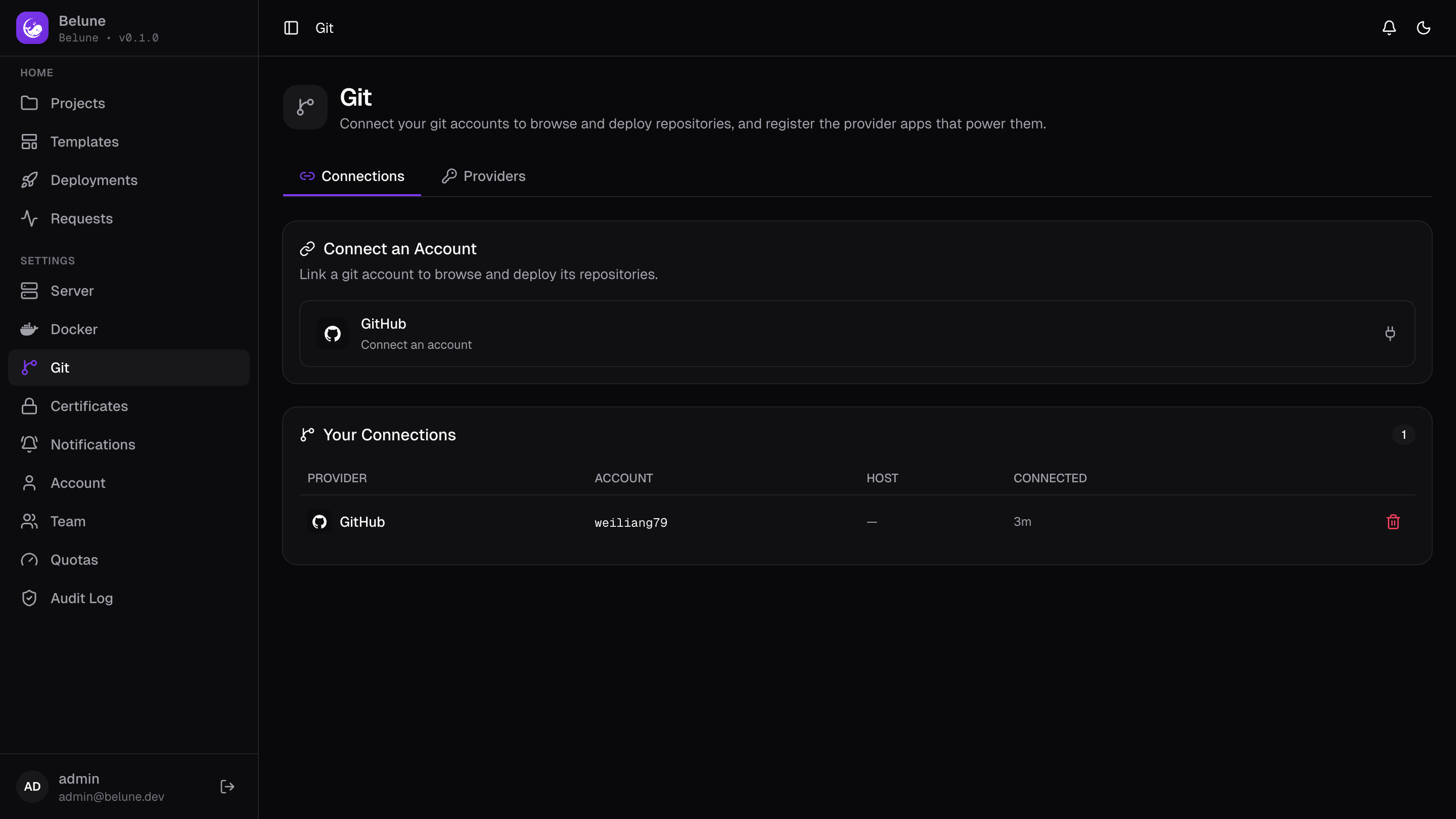
From the Connections tab, pick any available provider to be redirected there and authorize Belune. Once connected, the table shows the account login, host, and when it was connected.
Deleting a connection removes that account's credentials; any application deploying through it will need to be pointed at a different connection.
Deploy from a Connection
When creating a Git-based application, pick Connected Account on the repository source field, then the repository and branch. The pickers only list repositories that connection can actually see; an existing application's Settings tab shows the same fields and lets you change them.
Push-to-Deploy
Connecting a repository registers a webhook on it automatically. A push to the application's configured branch triggers a build the same way a manual deploy does — see Deployments for what happens after the webhook fires, and for deploy hooks as a git-independent alternative.